Evaluating the Cliency Business Presentation Template for Professional Results
Selecting the right visual framework is often the difference between a pitch that secures funding and one that fades into obscurity. The Cliency Business Presentation Template has emerged as a versatile solution for professionals who need to bridge the gap between creative expression and corporate structure. Designed to serve a wide spectrum of users—from creative agencies and startups to photographers and individual freelancers—this template offers a comprehensive toolkit for visual storytelling. However, owning a high-quality asset like Cliency is only the first step. Many users inadvertently undermine the effectiveness of their presentations by misunderstanding how to leverage its specific features or by overlooking critical technical details during the selection process.
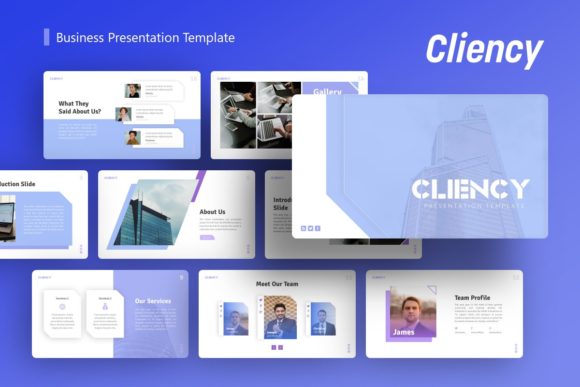
Understanding what Cliency actually provides is essential before you commit to using it for your next major meeting. This is not merely a collection of static backgrounds; it is a system built on Master Slides with 36 distinct layouts per template variation. It includes handcrafted infographics, pixel-perfect illustrations, and fully resizable vector graphics. Whether you are building a company profile, a personal portfolio, or a startup pitch deck, the utility lies in its adaptability. Yet, this adaptability requires a disciplined approach. Users who treat this template as a simple copy-paste solution often end up with disjointed narratives that fail to communicate their unique value proposition.
Overlooking the Power of Master Slides
One of the most frequent and damaging mistakes users make with the Cliency Business Presentation Template is ignoring the Master Slide architecture. Beginners and even some seasoned professionals often edit elements directly on individual slides rather than updating the global master. While this might seem faster in the moment, it creates significant long-term inefficiencies. If you need to change a brand color, update a logo, or adjust font hierarchy across all 36 slides, doing so manually is prone to error and inconsistency.
This oversight affects the perceived professionalism of your final output. Inconsistent margins, mismatched colors, or varying font sizes signal a lack of attention to detail to your audience. To avoid this, always navigate to the View > Slide Master menu in PowerPoint before making global changes. By utilizing the master slide functionality correctly, you ensure that every infographic, picture placeholder, and text box adheres to a unified design system. This not only saves hours of editing time but also guarantees that your Creative Agency or Corporate presentation maintains visual integrity from the title slide to the closing contact information.
Misunderstanding Image Licensing and Placeholders
A common source of frustration and potential legal risk involves the images used within the demo files. It is vital to understand that all images shown in the Cliency preview are for demonstration purposes only and are not included in the downloadable files. New users sometimes assume they are purchasing a complete package with stock photography included, leading to disappointment upon opening the .PPTX file or, worse, copyright infringement if they attempt to extract and reuse watermarked preview assets.
The template provides picture placeholders designed for drag-and-drop functionality, which streamlines the process of inserting your own content. To use Cliency effectively, you must have your own licensed imagery ready before you begin designing. For Portfolio or Photography presentations, this means curating high-resolution work that matches the aspect ratios of the placeholders. For business profiles, it implies sourcing appropriate stock photos or team headshots that align with your brand identity. Treating the template as a structural guide rather than a content library ensures you avoid legal pitfalls and present authentic, relevant visuals that resonate with your specific audience.
Neglecting Vector Editability in Infographics
Cliency distinguishes itself with handcrafted infographics and pixel-perfect illustrations, yet many users treat these elements as static JPEGs. A significant missed opportunity occurs when presenters leave default data in charts or diagrams because they do not realize these graphics are fully editable vectors within PowerPoint. Leaving generic "Lorem Ipsum" text or irrelevant sample statistics in an infographic destroys credibility instantly, regardless of how beautiful the design is.
To maximize the value of this feature, take the time to ungroup and customize every vector element. Because the graphics are resizable and editable, you can tailor complex data visualizations to fit your exact narrative without needing external software like Adobe Illustrator. If you are preparing a Pitch Deck for investors, accurate data representation is non-negotiable. Verify that every chart reflects your actual metrics and that every icon supports your specific point. The ability to modify these assets natively in PowerPoint is a core benefit of Cliency; failing to utilize it reduces the template to mere decoration rather than a functional communication tool.
Failing to Align Template Style with Audience Expectations
Versatility is a strength of the Cliency Business Presentation Template, but it can also lead to poor decision-making if you select the wrong variation for your context. Using a highly artistic, abstract layout intended for a Personal Portfolio when presenting a quarterly financial report to conservative stakeholders can create cognitive dissonance. Conversely, using a rigid corporate layout for a creative agency pitch might make your brand appear outdated or uninspired.
Before downloading or purchasing, critically evaluate the tone of each template variation against your audience's expectations. Ask yourself whether the visual language supports your message or distracts from it. Just because a template is labeled "Creative" does not mean it cannot be adapted for business, nor does "Corporate" imply it lacks modern appeal. Review the 36 available slides to ensure there is sufficient variety to cover all sections of your specific presentation. If you find yourself forcing content into ill-fitting layouts, it is a sign that this particular variation may not be the optimal choice for your current project.
Technical Verification Before Commitment
Efficiency and satisfaction depend heavily on technical compatibility. Before integrating Cliency into your workflow, verify that your version of PowerPoint supports all advanced features. While the template is designed for broad compatibility, certain animations or smart art integrations may behave differently across versions. Additionally, review the included Documentation File thoroughly. This resource often contains specific instructions for customizing complex elements that are not immediately obvious through standard PowerPoint menus.
Also, consider the file size implications. High-quality templates with numerous vector assets and placeholders can result in large .PPTX files. Ensure your hardware can handle smooth editing and that your delivery platform supports the file size. If you plan to email the presentation, you may need to compress media after customization. Being proactive about these technical constraints prevents last-minute panic before a deadline.
Making an Informed Decision
The Cliency Business Presentation Template is a robust resource for entrepreneurs, marketers, educators, and creatives seeking professional-grade visuals without hiring a designer. Its value is realized not just in the download, but in the thoughtful application of its features. By respecting the Master Slide structure, securing proper image licensing, fully customizing vector infographics, and matching the design tone to your audience, you transform a generic template into a powerful strategic asset.
Avoid the temptation to rush through the setup phase. The initial investment of time in understanding the template’s architecture pays dividends in the quality of your communication and the efficiency of your workflow. When used correctly, Cliency allows you to focus less on formatting and more on crafting a compelling narrative that drives results. Evaluate your needs honestly, prepare your assets in advance, and leverage the full depth of the provided tools to ensure your next presentation is both visually stunning and strategically sound.